
A new tab bookmarks manager that speaks Chrome tab groups
Drag a tab group in and it arrives as a colored bookmark group, name and all. Open the collection again and your tab strip is rebuilt, groups and colors included. No account, no server — your bookmarks stay ordinary Chrome bookmarks.
- No account
- No server
- No telemetry
- Free, with no paid tier
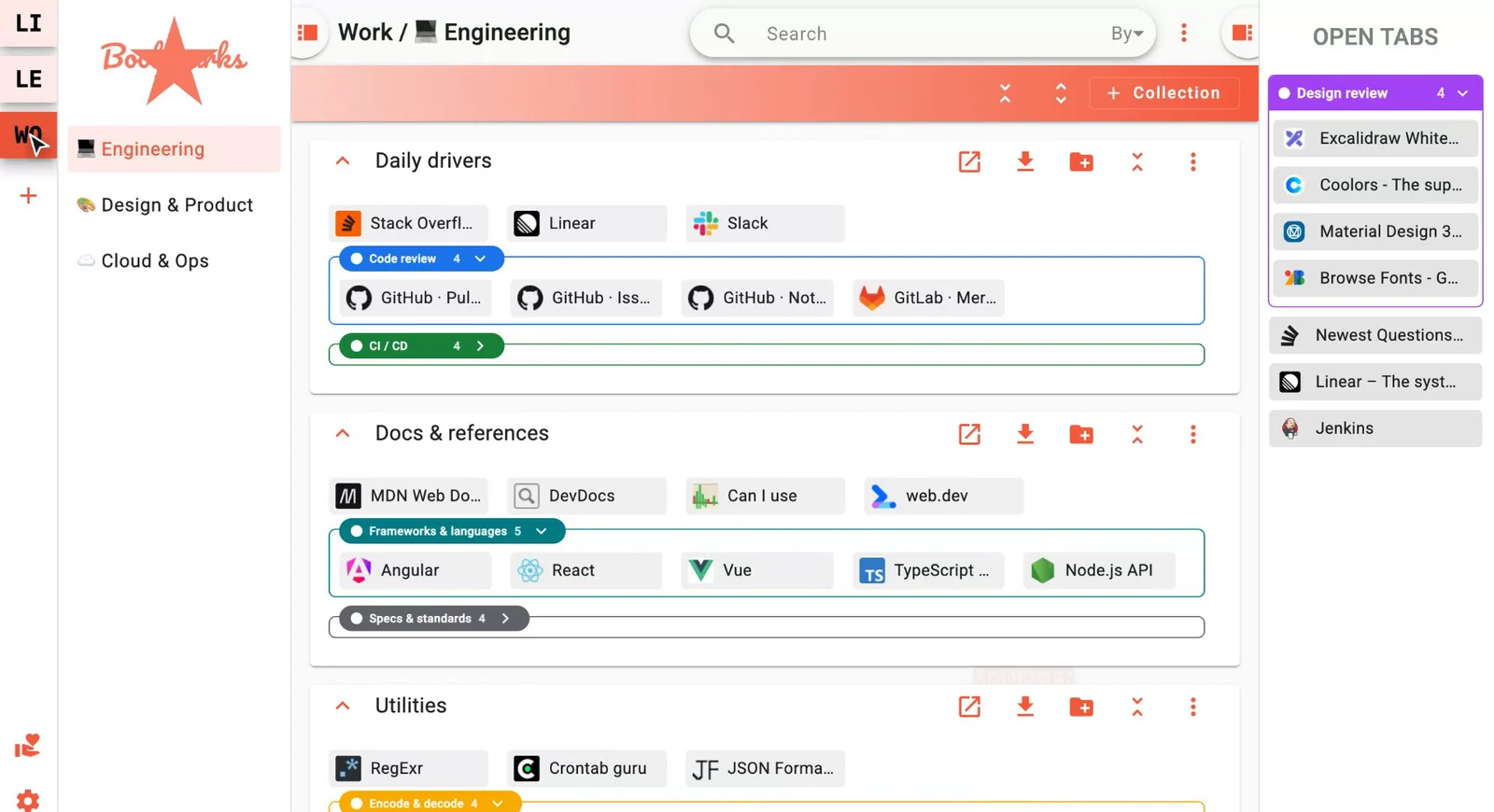
Fifty seconds, no sound needed
Tab groups going in, a whole window saved in one click, and the tab strip rebuilt from a collection.
The video only loads from YouTube once you press play, so nothing is requested — and no cookie is set — before then.
Save tab groups. Get them back exactly as they were.
Most tab managers save a session in their own format. This one speaks Chrome's: a tab group goes in as a bookmark group and comes back out as a tab group.
- Drag a tab group into a collection. It keeps its name and its color — the same nine colors Chrome uses.
- Import all open tabs saves the whole window in one click. Grouped tabs become bookmark groups, loose tabs stay loose, and the left-to-right order survives.
- Open all bookmarks is the exact inverse. Each group comes back as a real Chrome tab group with its name, color and collapsed state — collapsed when you saved it, collapsed when it returns.
- Close tabs as they are imported, optionally, so a cluttered window becomes a collection you can pick up tomorrow.
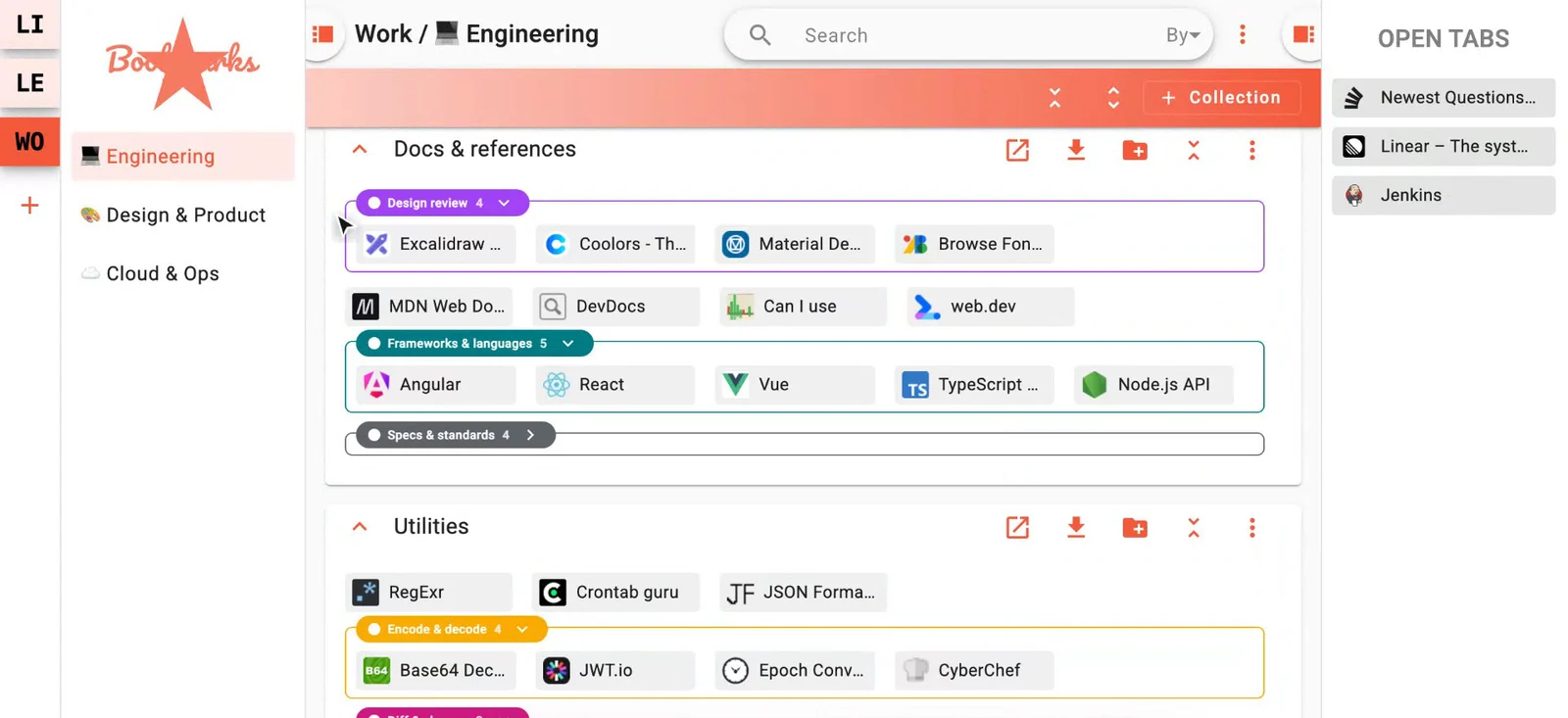
Four levels, and that is the whole model
Deep enough to keep work and life apart, shallow enough to stay in your head.
Organizations
Work and personal, completely apart. Switch between them from the left rail.
Spaces
A page of collections for one project, client or topic. Drag them to reorder.
Collections
A labelled box of bookmarks. Rename it inline, collapse it, move it, delete it.
Groups
Colored, collapsible groups inside a collection — your Chrome tab groups, at rest.
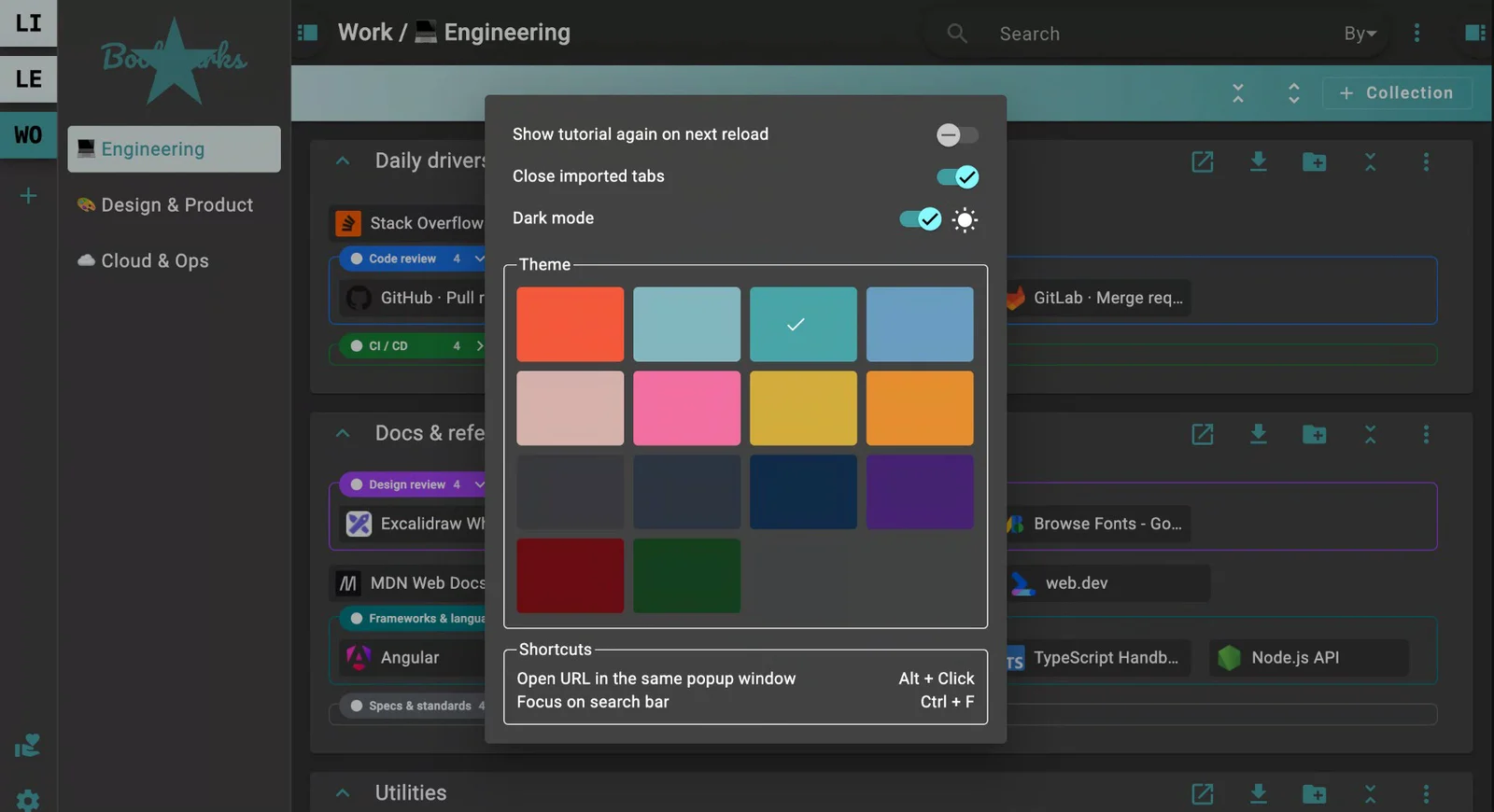
Fast to rearrange, fast to find, yours to look at
- Drag and drop everywhere — bookmarks between collections and groups, groups between collections, collections between spaces. Drop a group onto another to merge them.
- Live search from the toolbar across titles and URLs, or switch the By filter to match an exact title or URL. Ctrl + F jumps straight to it.
- Alt + Click opens a bookmark in a small popup window — a quick look at a reference without losing your place.
- Dark mode and fourteen accent colors, plus a guided tour you can switch back on whenever you want a refresher.
No account. No server. Nothing sent to us.
Bookmarks Manager has no backend. Your bookmarks live in your browser's own bookmark tree, inside a single folder the extension manages — so they sync with Chrome like every other bookmark you have, and they are still there if you uninstall the extension tomorrow. Nothing you browse, search or save is collected, sold or sent anywhere.
The extension has no analytics and no error reporting, and this page has no analytics, no cookies and no trackers either. Read the full privacy statement, including the short list of requests the interface does make.
How it compares
The honest version: the big tab managers do more than this one. They also want an account first.
| Bookmarks Manager | Toby, Workona, Raindrop | |
|---|---|---|
| Sign-up required | None. There is nothing to sign up to. | An account, on all three. |
| Where your links live | Your own Chrome bookmarks, in one folder. | Their servers, in their own format. |
| If you uninstall it | Your bookmarks stay — they were always just bookmarks. | Export first, or lose the view of them. |
| Chrome tab groups, both directions | Name, color and collapsed state, in and out. | Sessions, in their own format. |
| Price | Free. No paid tier to graduate to. | A capped free tier, with paid plans above it. |
Questions
How do I save a tab group in Chrome?
Open the Open Tabs panel and drag the tab group into a collection — it arrives as a bookmark group with the same name and the same color. To save the whole window at once, use Import all open tabs: grouped tabs become bookmark groups, loose tabs become loose bookmarks, and the left-to-right order is preserved.
Can I reopen a saved tab group as a real tab group?
Yes. Open all bookmarks rebuilds the collection in your tab strip and restores each group as a real Chrome tab group with its name, color and collapsed state — so a group you saved collapsed comes back collapsed.
Do I need an account?
No. There is no account, no sign-up and no server. The extension has no backend at all, so there is nothing to log in to and nothing to cancel.
Where are my bookmarks stored?
In your browser's own bookmarks, inside a single folder the extension creates and manages. If you are signed in to Chrome they sync across your devices exactly like the rest of your bookmarks, and they are still there if you ever uninstall the extension.
Does it touch my existing bookmarks?
No. Everything it shows and changes lives inside its own folder. The rest of your bookmark tree is left exactly as it is.
Does it work in Edge or Brave?
It is built and tested for Chrome, and it installs from the Chrome Web Store. Chromium browsers that allow Web Store installs and support tab groups — Edge and Brave among them — generally run it too.
Is it really free?
Yes. No paid tier, no feature gate, no trial that expires. There is an optional donate link inside the app, which you are welcome to ignore.
Open a new tab. Everything is where you put it.
Free on the Chrome Web Store. It takes one click and no email address.